
Articles
Articles are the editions of your newsletter. You write them in the dashboard and send them as a newsletter to your subscribers. They also appear online on your own Lettership page, in your archive.
The overview
Section titled “The overview”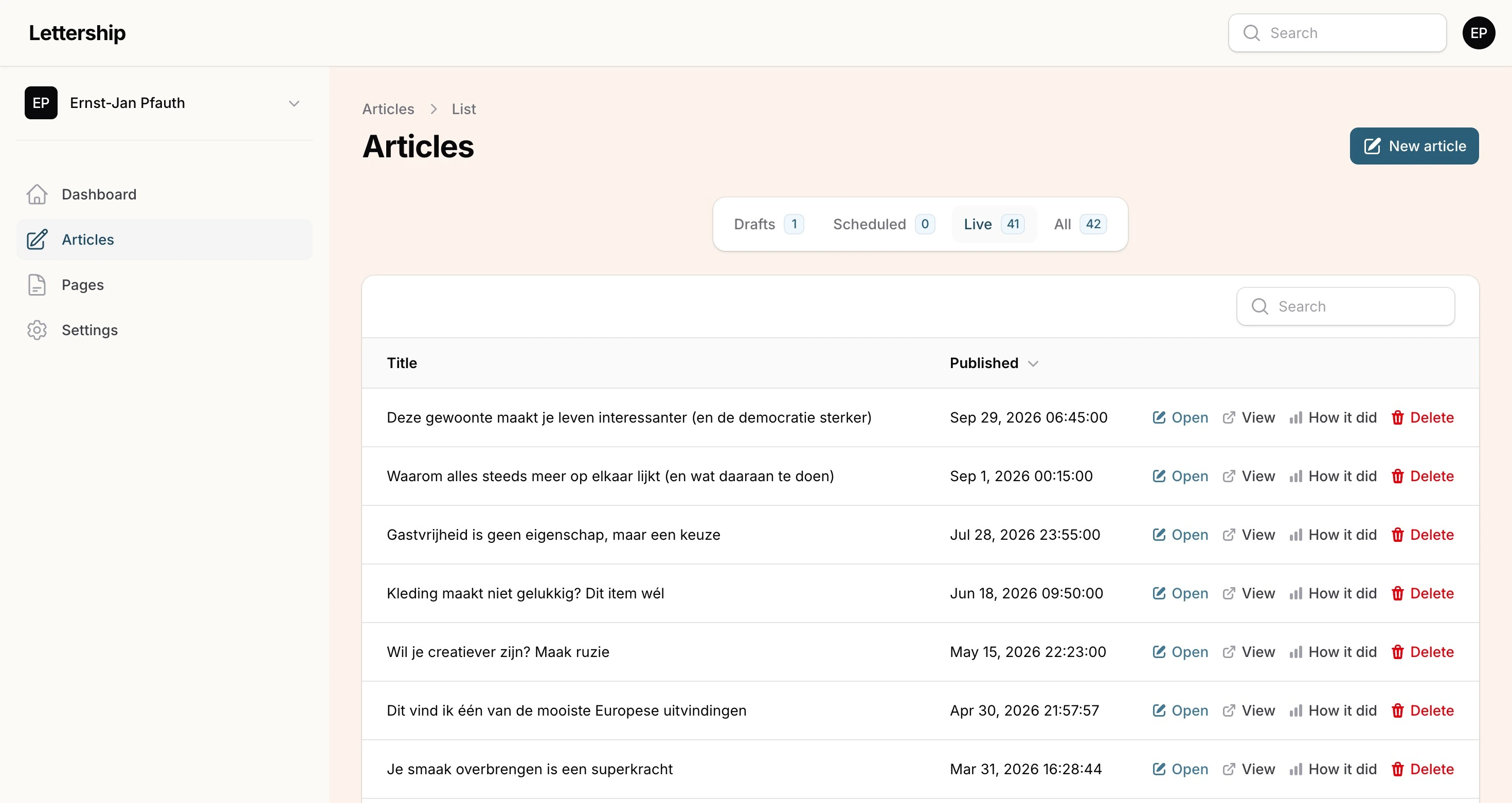
Go to Articles. The overview opens on the Live tab, with your published articles. All your articles, drafts included, are under the last tab.
The editor
Section titled “The editor”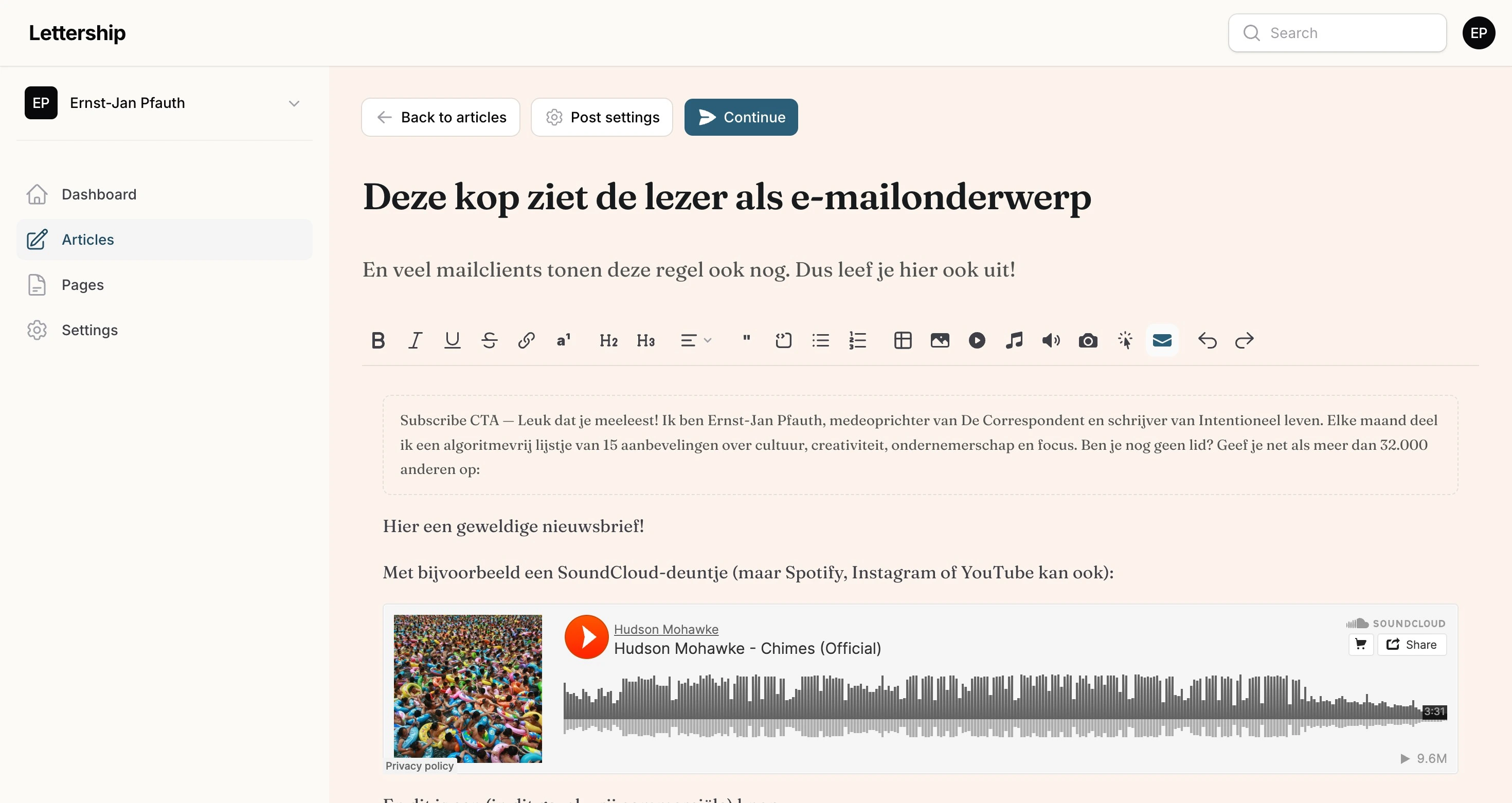
Click New article. You get a title, a subtitle and the text.
The title is the subject line of your email and the most important line of text in your entire newsletter. Really think about this one. Because the purpose of a subject line is not to inform the reader, but to make people pick your email out of all those emails to read.
Subtitle
Section titled “Subtitle”The subtitle is visible after the subject in many email clients. Use it to explain a bit more, so people know what’s in the email and feel like opening it.
The text
Section titled “The text”- Make it scannable with headings and lists, because people read quickly in their inbox.
- Address readers directly, as if you’re telling them a good story in the pub.
- If you don’t know something, ask them. You’ll almost always get an answer. Did someone say something valuable? Thank them by name in the next edition.
Blocks that help your newsletter grow
Section titled “Blocks that help your newsletter grow”Besides the usual formatting (bold, italic, headings, quotes, lists, tables) the toolbar has a few buttons that help your newsletter grow.
Subscribe action
Section titled “Subscribe action”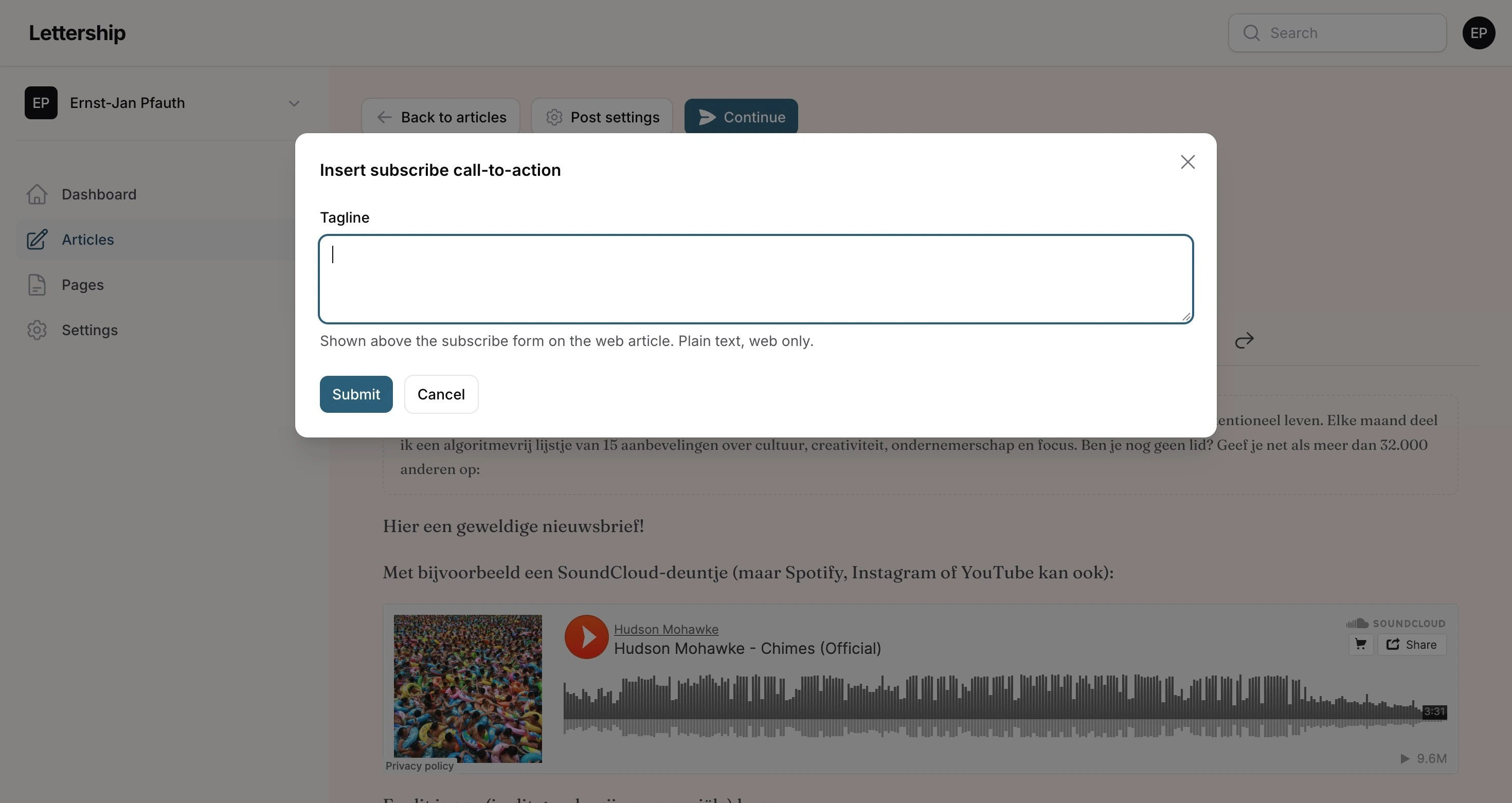
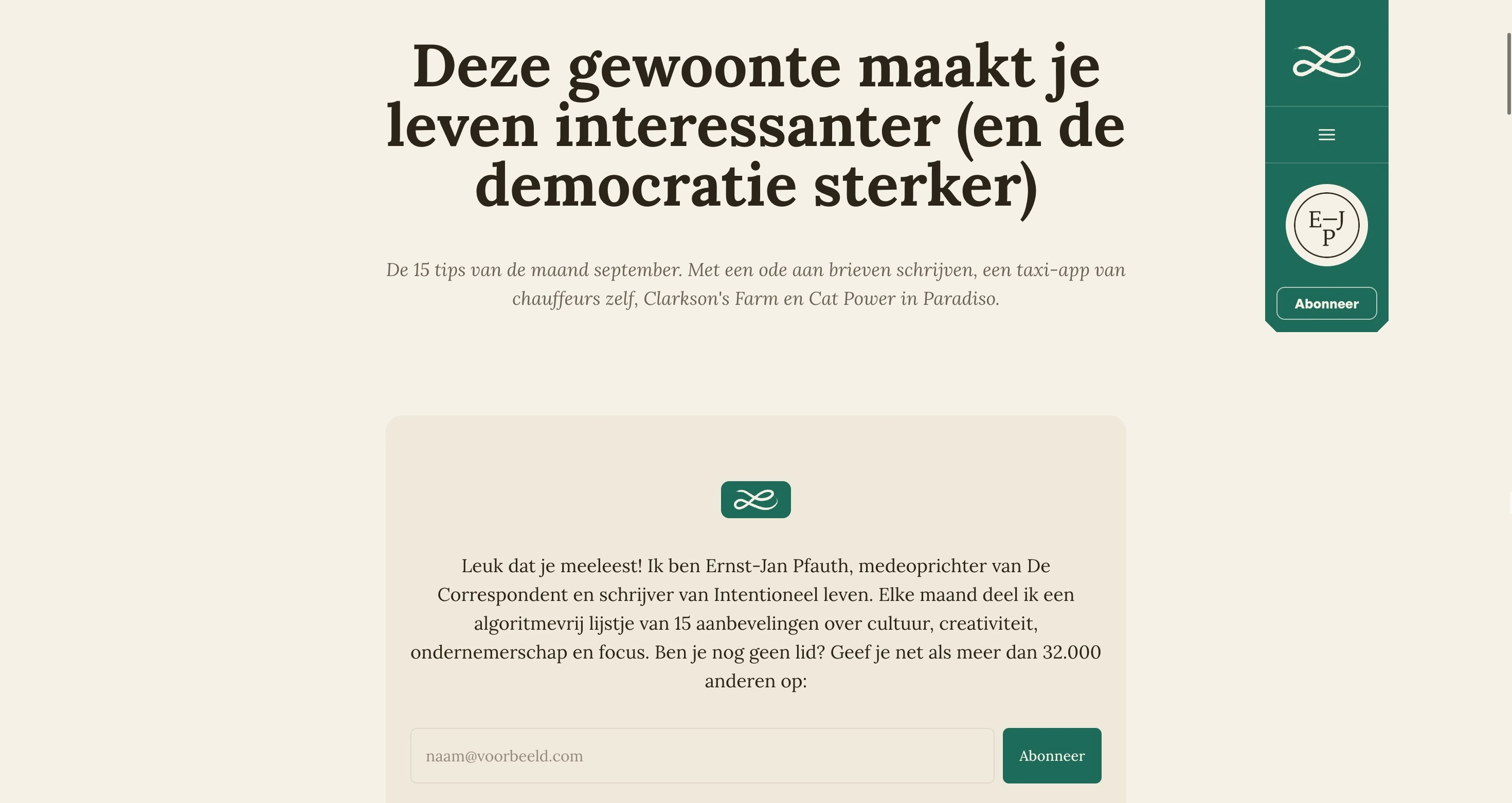
Subscribe action puts a sign-up form in your article. You should always assume people are reading your newsletter online without being a member yet, because someone sent them the link. This block gives them the idea. Add a short, personal text.
This is how my September edition opens on the site:
Link button
Section titled “Link button”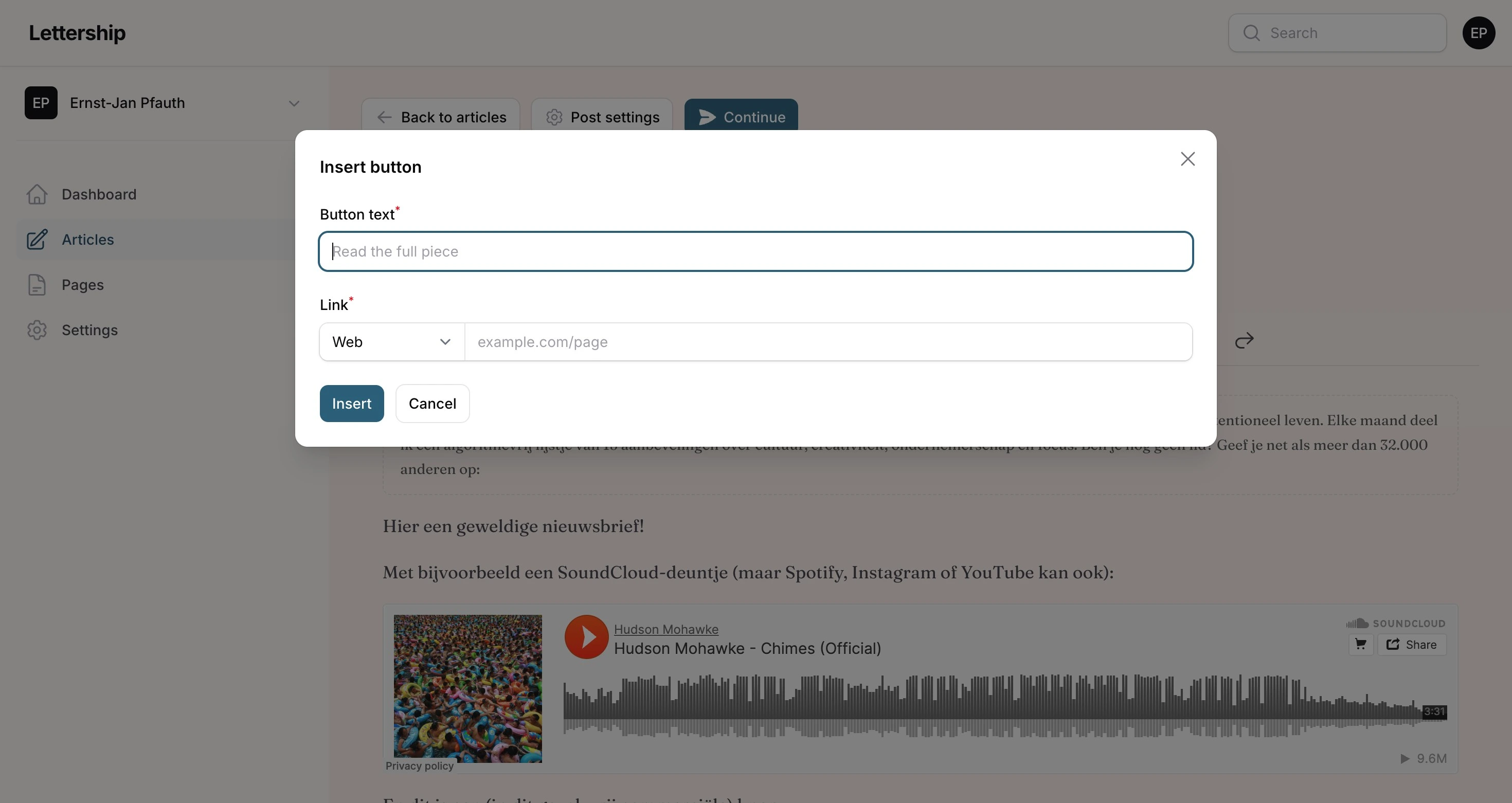
Link button makes a button in your accent colour, with your own text and a link. I use it, for example, for a “Buy my book” button when announcing a new book.
A button can also open an email: under Link, choose Email instead of Web and enter your email address. Handy for a button like “Send me a message”. With Phone, readers call you directly.
And also
Section titled “And also”- Footnote is for things that go too far to mention in the text itself, but that you still want to pass on. They appear at the bottom of the article.
- Image adds a picture, with a caption that is shown in email and on the web. Because newsletters are so personal, I often use photos I took myself.
- YouTube, Spotify, SoundCloud and Instagram: paste the link and the embed sits in your article.
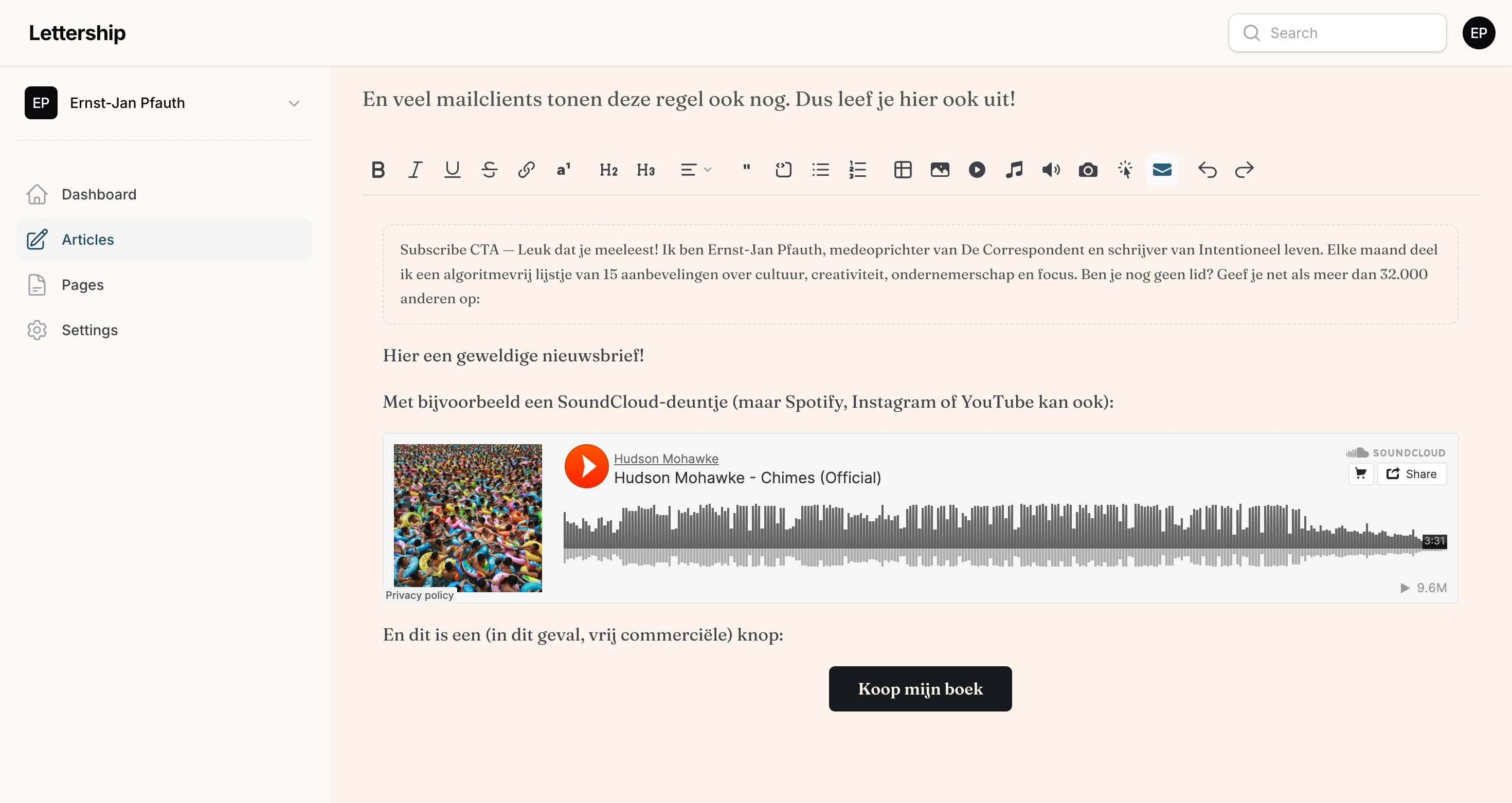
This is what it looks like in the editor, with a Subscribe action at the top, a SoundCloud embed and a button at the bottom:
Post settings
Section titled “Post settings”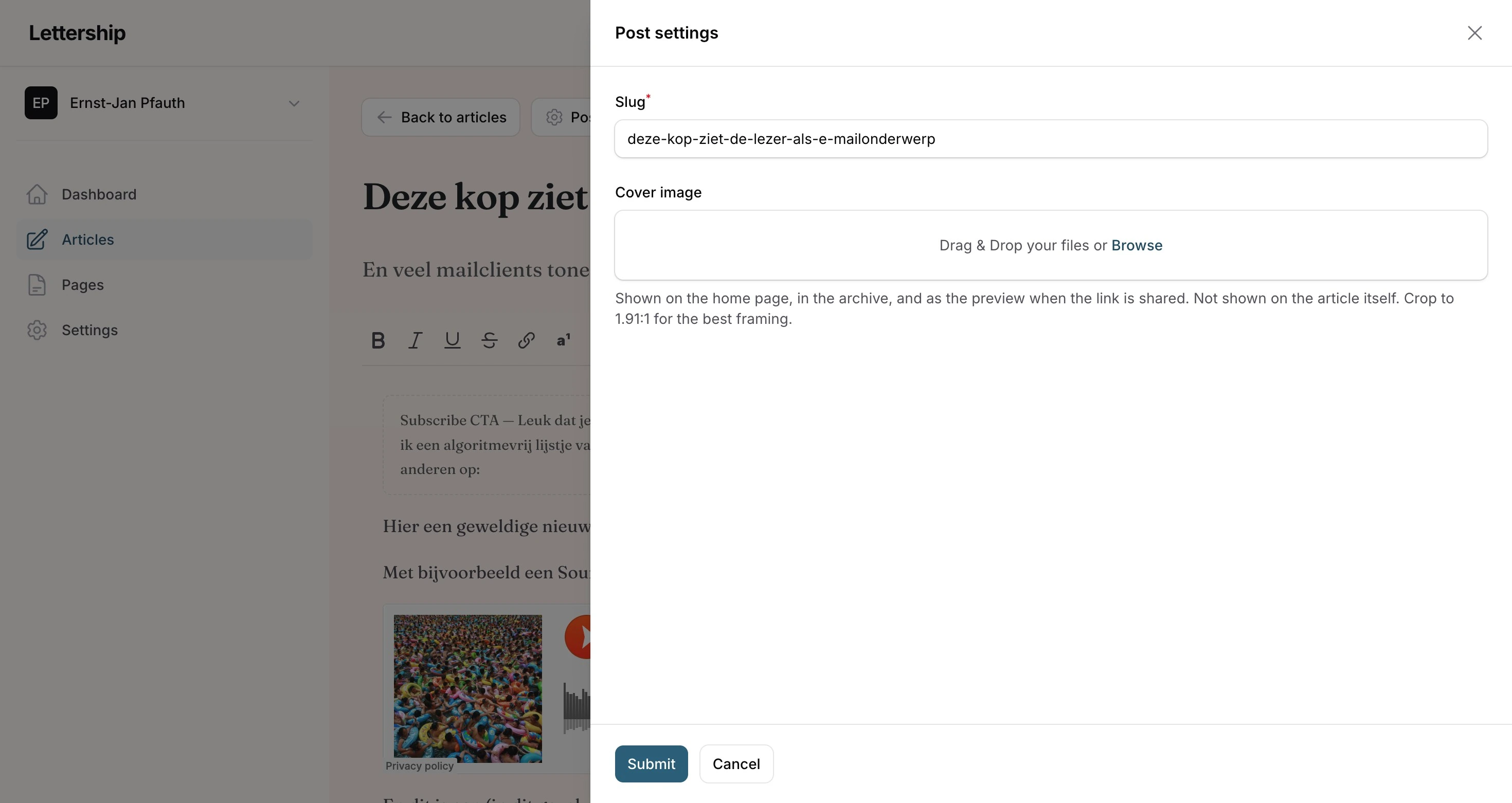
Via the Post settings button you set the web address of the article and upload a cover image. That cover isn’t in the email or in the article itself, but it’s visible in your archive on Lettership, on social media and in search engines. It draws attention there, so it’s worth it.
Sending
Section titled “Sending”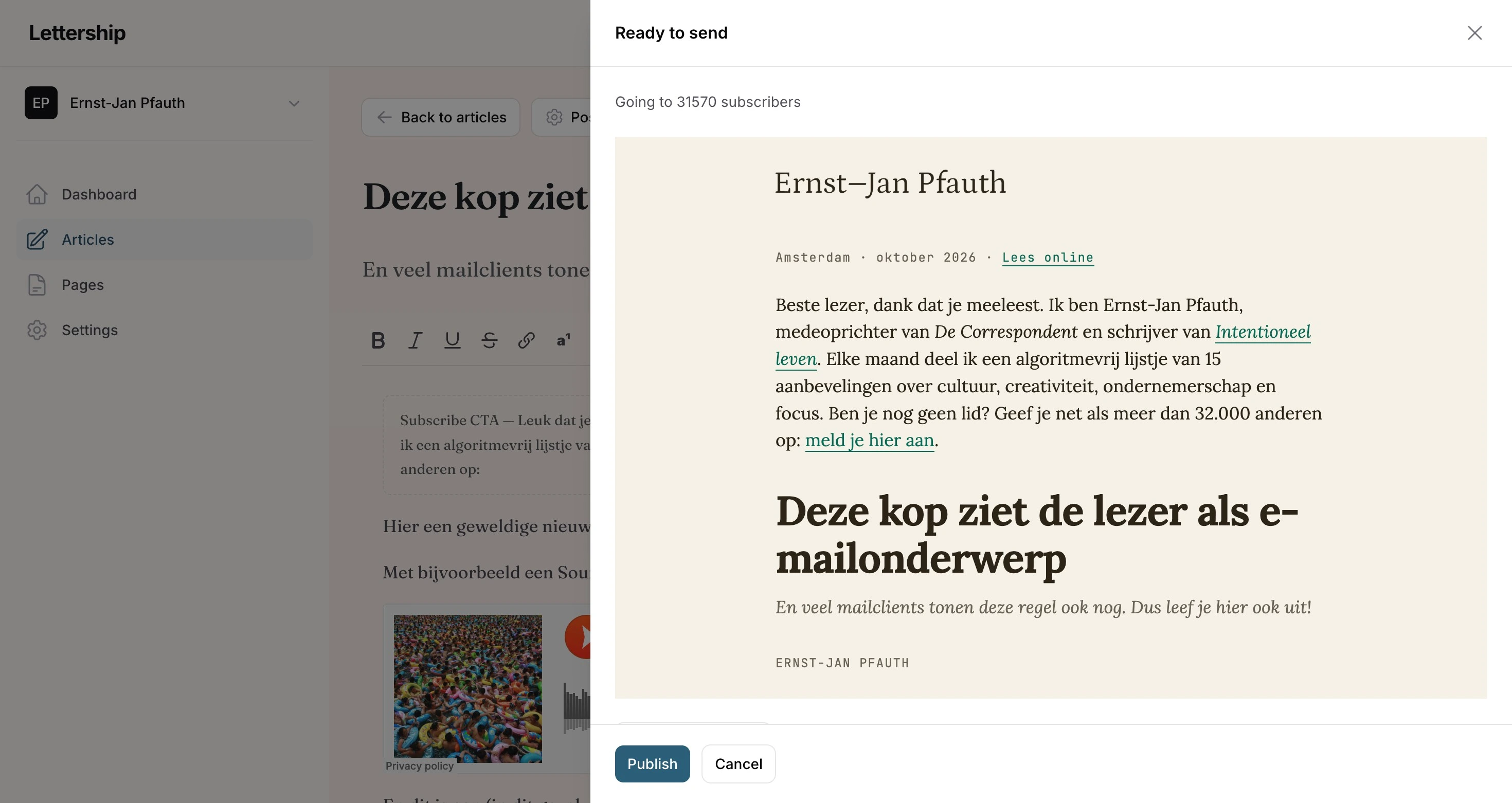
Nobody dared to press the Publish button, which is why it’s now called Continue. It needn’t be scary: that button doesn’t send anything yet. It opens a screen with your email exactly as your readers will get it, with at the top how many subscribers will receive it. Nothing goes out until you click Publish in that screen.
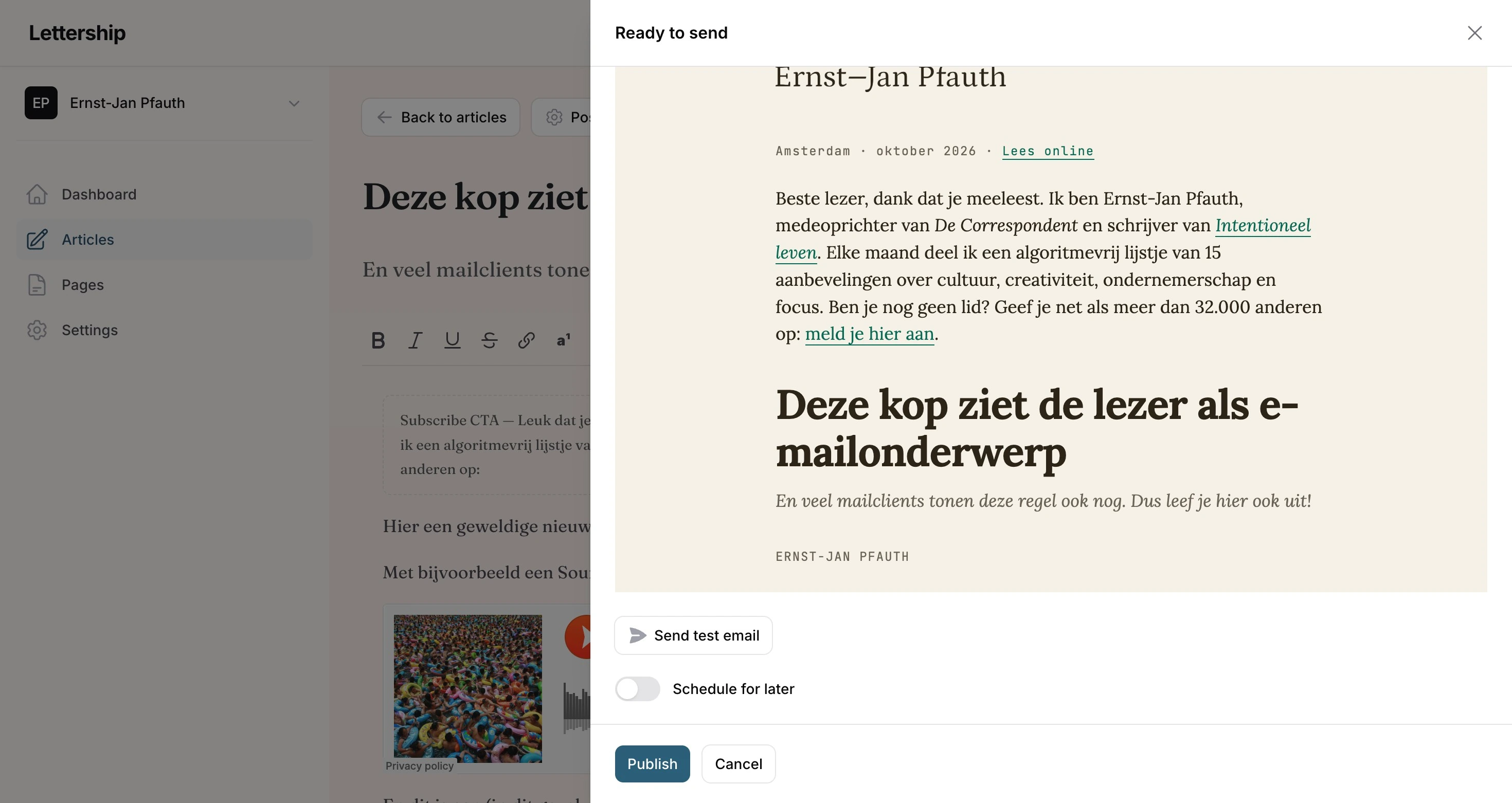
Below the preview are two things I always use.
Send test email
Section titled “Send test email”Sends the edition to yourself, with [Test] in front of the subject. I do this with every newsletter:
- I click all the links.
- I check whether the subject comes across well and isn’t too long.
- I go over the formatting. On desktop and on my phone.
Schedule for later
Section titled “Schedule for later”This lets you pick a day and time. Choose a fixed rhythm that works for you, so your readers know what to expect.
- Weekly is ideal; that’s the fastest way to build a bond.
- Every other week works too, if you can’t manage weekly.
- Monthly works as well. One of my newsletters is monthly, because I think it’s more important that it’s doable for me than that readers hear from me every week.
Such a rhythm also keeps you honest. Occasional newsletters are fine, but then it all comes down to your discipline, and your readers don’t know what to expect. It’s the sum of your newsletters that counts, not the individual editions.
After sending, the Reading stats show how your edition was read.