
Go to Settings › Mail. Okay, this is an important screen. It holds the texts that surround every newsletter, and the two emails every new reader gets first.
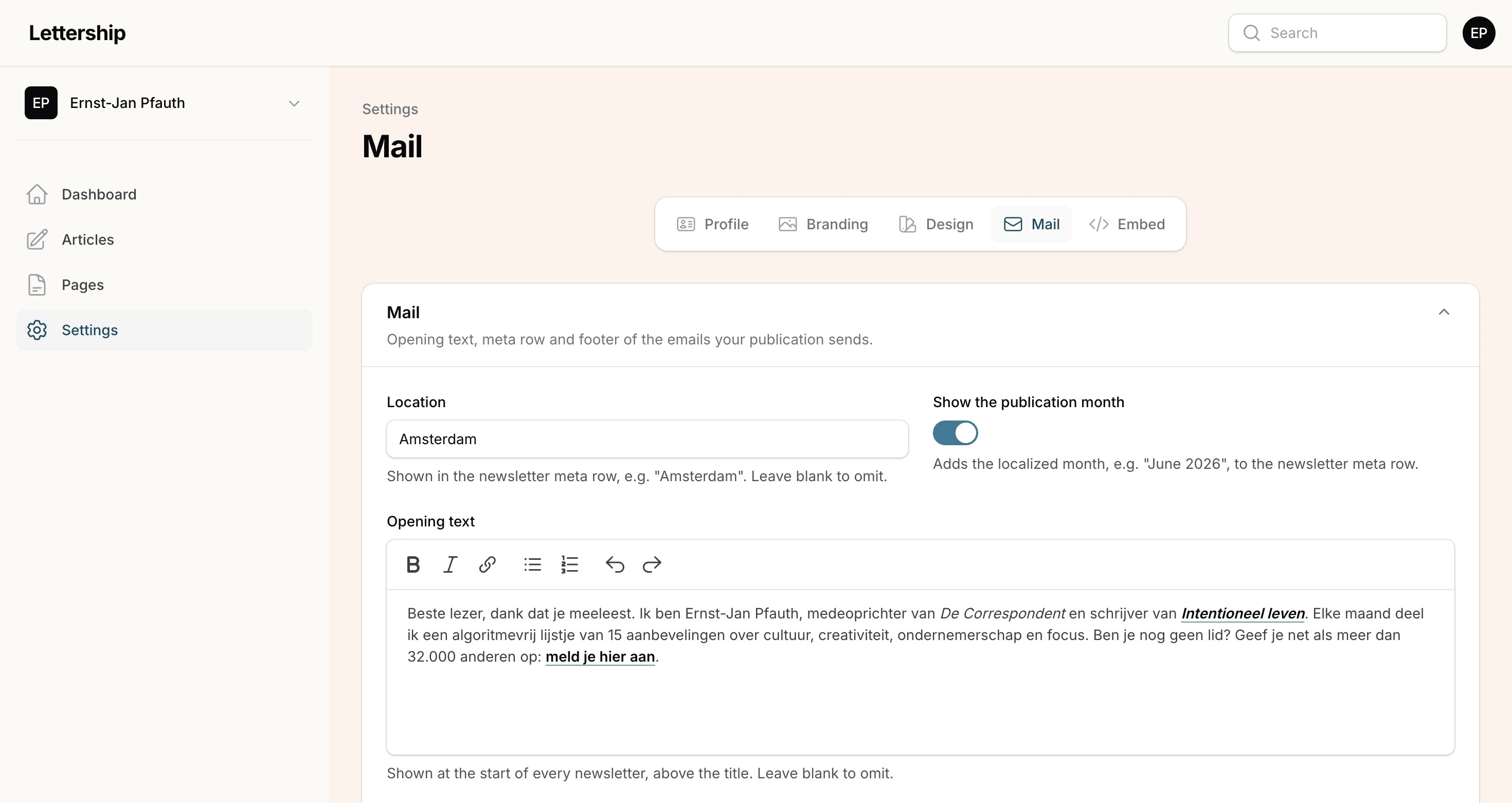
Opening text
Section titled “Opening text”It sounds odd, but with every newsletter you have to assume people have forgotten they subscribed to you. Especially if they started following you through a recommendation. The opening text helps with that: it’s where you introduce yourself anew every time, above the title of your edition. Who you are again and what you do.
Also put a link to your Lettership in it, so people can subscribe there. Your readers will forward good newsletters, and when their friends open that email, they immediately see where they can subscribe too.
Location, publication month and sign-off
Section titled “Location, publication month and sign-off”- Location and publication month: above every edition you can show a location (in my case “Amsterdam”) and the month of sending. Leave empty if you don’t want it.
- Sign-off: a standing greeting at the bottom of every edition. Mine: “Until next time, Ernst-Jan Pfauth”. Leave empty to omit it.
Postal address
Section titled “Postal address”By law, every newsletter you send has to contain a postal address. You can put your business address here if you have one. If you leave it empty, we show Lettership’s address.
Welcome email
Section titled “Welcome email”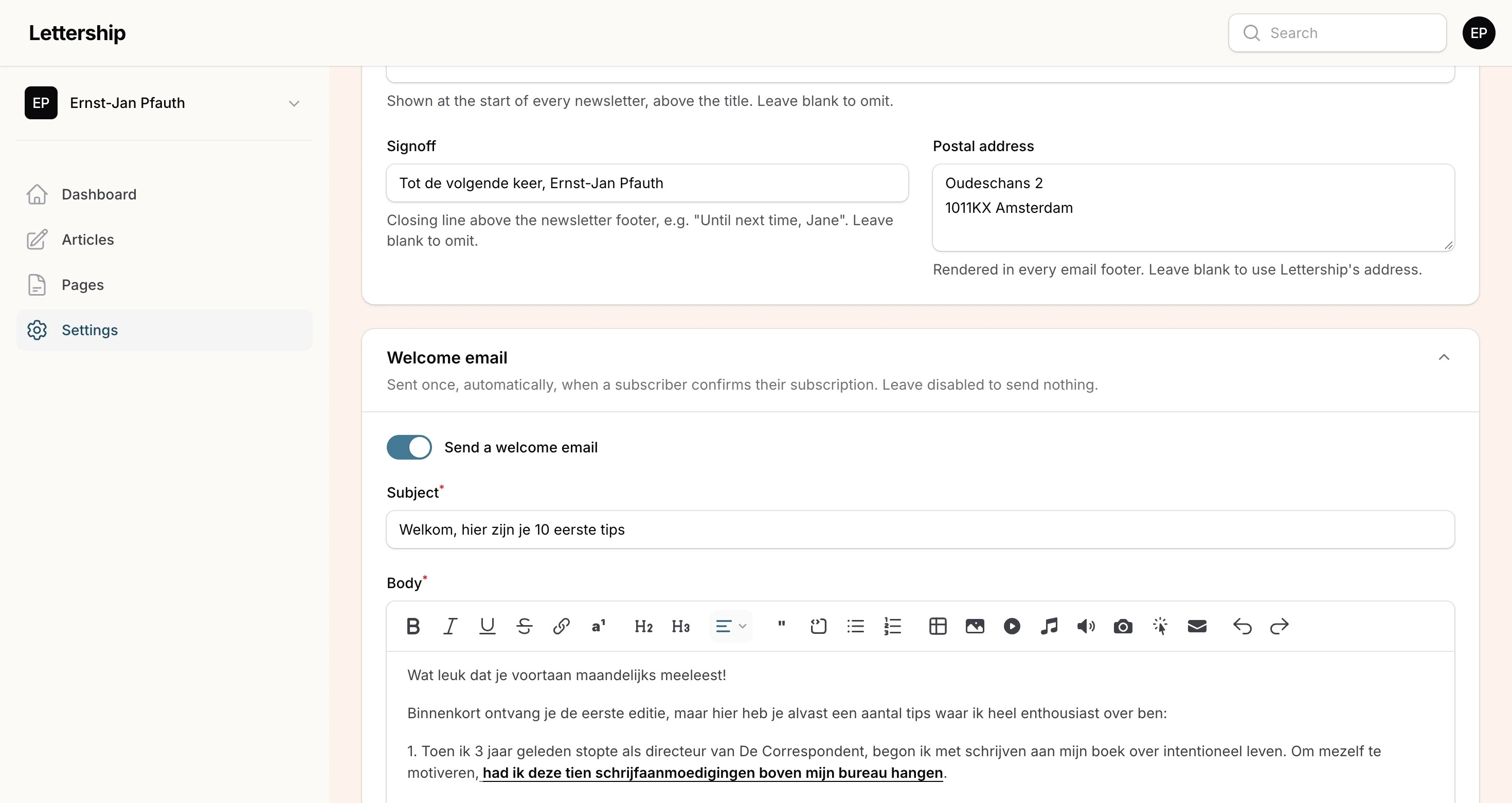
Your welcome email is your most important edition. People have just subscribed and are completely open to hearing more from you. So use this email to:
- introduce yourself and the newsletter a bit more extensively;
- stress what they’ll get out of it;
- share some of your best work already: editions you’re proud of, or a book you’ve written.
That way they can read something of yours straight away and you strengthen the fledgling bond that’s just begun. It’s something you make once, and it helps every new reader after that.
Here’s how to set it up:
- Flip the switch.
- Choose a subject. It also appears as the title at the top of the email, with your name below it, just like your regular editions. So pick a subject that works as a headline too.
- Write the content in the same editor as your articles.
Confirmation email
Section titled “Confirmation email”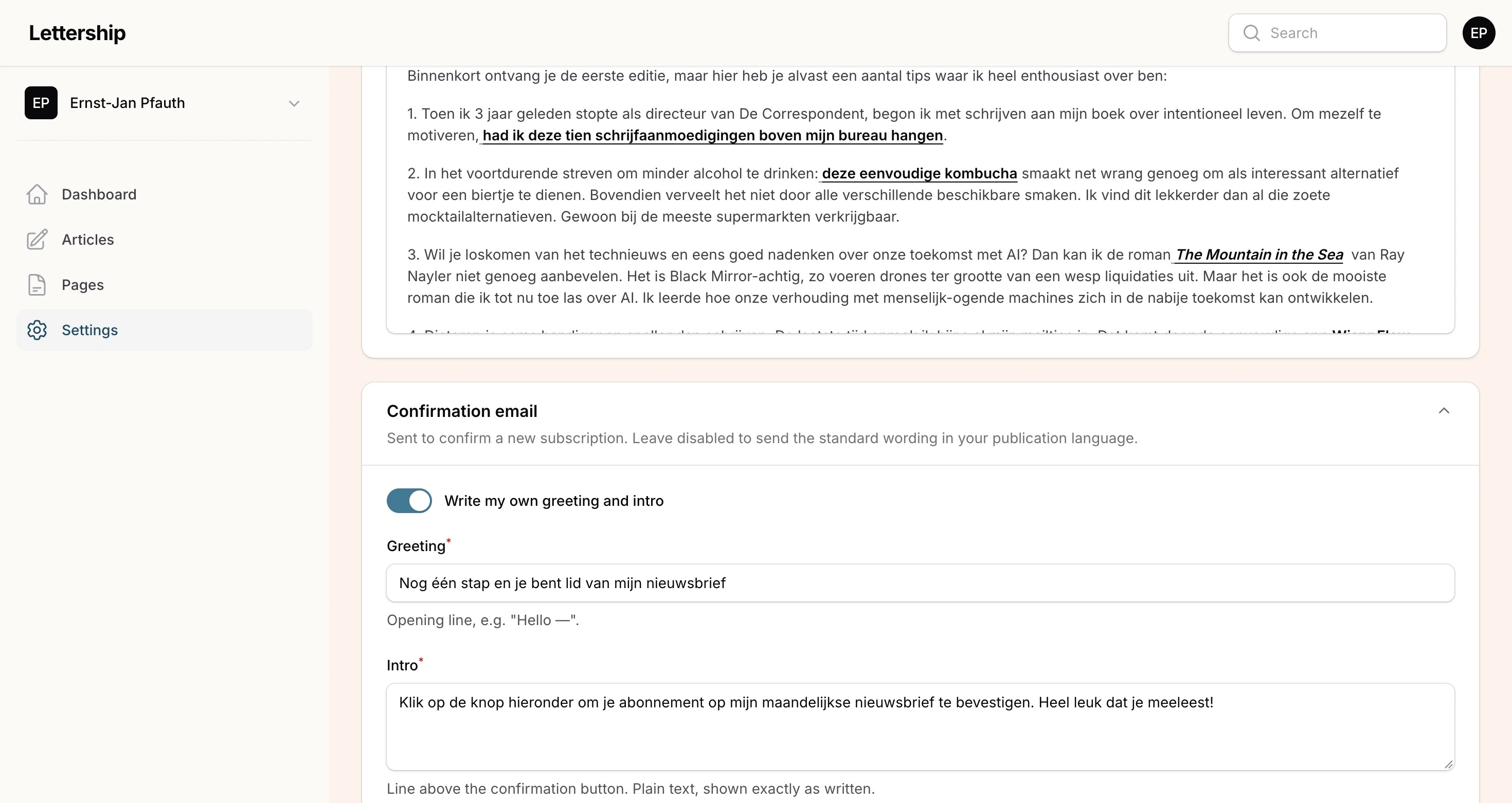
The confirmation email is an administrative thing we have to do to prevent spam bots from subscribing to your newsletter, or someone entering somebody else’s email address. Someone only becomes a subscriber after clicking the button in this email.
You can use our default text, but you can also choose your own words, because it’s the first moment of contact with your reader in their inbox. Keep it short and focused. All that matters is that they confirm their subscription.